Using the "My Shipments / Lots" Feature
Table of Contents
Overview: What is 'My Shipments / Lots'?
The My Shipments / Lots feature is designed to calculate the true cost basis of your trading cards and sealed merchandise. To accurately determine your potential net profit upon resale, PokéFolio accounts for your shared overhead expenses—such as initial product purchase prices, shipping fees, customs duties, or marketplace platform fees—and automatically distributes those pooled costs across the individual items linked to that specific lot.
How to Access the Feature
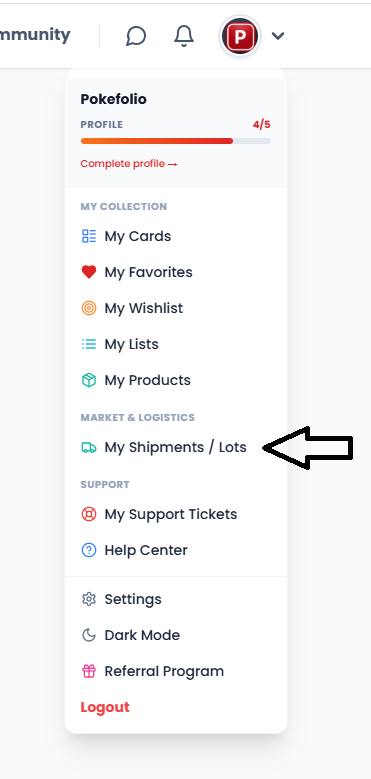
You can access and begin using this feature via two distinct access points:
- From the primary shipments management dashboard: My Shipments Dashboard
- Directly from the individual card creation screen via the dedicated shipment assignment field.
Use Case 1: Buying a Batch of Items Online (Pooling Shared Fees)
Use this workflow when you buy a batch of individual cards online and want to split shared overhead costs (such as shipping and platform transaction fees) evenly among them.
Create the Shipment Profile
-
Navigate to the My Shipments / Lots dashboard.
- Click the blue Create New Lot button to open the configuration modal.
-
Fill out the following parameters:
- Lot Name (Mandatory): Give your order a clear, recognizable identifier (e.g., 'Ebay Order 2569').
- Date Received: Enter the date the parcel arrived.
- Tracking Number: Enter the courier tracking code.
-
Locate the Shared Costs (€) distribution fields inside the modal to input your global transaction expenses:
- Purchase Price: Always enter 0.00 here. This field is reserved exclusively for opening sealed products (like booster boxes). For standard online batches, you will enter the specific price of each card individually later on.
- Shipping: Enter the delivery fee paid for the overall package (e.g., 3.90).
- Customs: Enter any import taxes or clearance duty fees paid to receive the parcel.
- Platform Fees: Input any service, transaction, or marketplace fees paid to complete the purchase (e.g., 2.50).
- Click the blue Create Lot button at the bottom right of the modal to finalize the profile.
Use Case 2: Opening a Sealed Product (Pooling the Box Purchase Price)
Use this workflow when you purchase an expensive sealed item (such as a booster display box) to open it, and you want the system to calculate the real cost basis of each individual 'pulled' card by dividing the total purchase price of the complete box among them.
Create the Unboxing Lot Profile
- Click the blue Create New Lot button to open the setup modal.
-
Fill out the configuration details tailored to your break:
- Lot Name (Mandatory): Give your opening a distinct title (e.g., 'Display 151 Opening').
- Date Received: Input the date the box was received or opened.
- Tracking Number: Enter the parcel's tracking number if shipped (Optional).
-
Access the Shared Costs (€) fields to input the total cost of the item to be broken down:
- Purchase Price: Enter the total price paid for the sealed box (e.g., 300.00).
- Shipping & Platform Fees: Input any extra postage or transaction surcharges you paid to acquire the box.
- Click the blue Create Lot button to save the unboxing shipment lot.
The 'My Shipments / Lots' Central Hub
Once a lot is successfully generated, you are redirected to the central tracking dashboard. This interface separates your work into two main operational segments:
A: Open Shipments
This view logs your active, modifiable lots. For every active shipment, a data row outlines:
- Lot Name & Date: The custom name assigned to your lot and its noted reception date.
- Status: A green 'Open' badge, confirming you can still link, edit, or adjust items inside this batch.
- Items: The current count of individual items tied to this specific lot.
- Total Cost: The calculated sum of all your shared cost fields (Purchase Price + Shipping + Customs + Platform Fees).
- Manage: Clicking this link opens the comprehensive lot settings page.
Linking Inventory to Your Lot
Before you can distribute these shared costs, you need to connect your items to the lot.
Need help linking your inventory? Check out our guide on how to add individual cards or sealed products directly to an open shipment lot.
View Guide: How to Add Cards & Products to a LotClosing the Shipment and Auto-Cost Calculation
When you have finished adding all cards (whether from online purchases, box breaks, or bulk sheets), you must lock the shipment lot to run the financial distribution system.
- Return to the main My Shipments / Lots dashboard and click Manage on your open lot.
- Locate the Close and lock shipment toggle switch located next to the form controls.
- Toggle the switch to Active, then click the blue Save Changes button.
Important Warning
Closing and locking a shipment lot is a permanent action. Once locked, the lot becomes strictly read-only and cannot be reopened or edited. Please double-check that all individual cards, sealed products, and exact costs have been completely added to the lot before finalizing this step.
System Action: PokéFolio freezes the lot parameters and aggregates your total pooled costs. It automatically calculates the financial overhead and evenly distributes the fees across all products linked to the lot, updating the final cost basis for each item.
Reviewing a Closed and Locked Shipment
Once finalized, the shipment is archived to prevent accidental edits and protect your historical financial records.
Dashboard Behavior
Your shipment moves to the permanent archives:
- It shifts from the active Open Shipments group down to the Closed Shipments table ledger.
- The green 'Open' status badge switches to a clean, grey 'Closed' indicator badge.
- The 'Manage' text button switches to a View action link accompanied by an eye icon.
Inside a Closed / Read-Only Lot
Clicking View opens the archived summary screen. A prominent dark grey badge at the top right explicitly states 'Closed / Read Only', signaling that all write modifications are disabled.
The application layout changes to look like this:
1. Shipment Configuration (Locked)
All baseline variables from your initial setup are permanently frozen:
- Frozen Elements: The Lot Name, Date Received, Tracking Number, and all inputs under Shared Costs Distribution (€) (Purchase Price, Shipping, Customs, and Platform fields) switch to plain, uneditable values.
- Removed Controls: The configuration toggle switch and the active 'Save Changes' button have been removed from the view.
2. Inventory Table (Finalized Costs)
Your card grid switches from a dynamic management view to a structured summary table:
- Removed Controls: The blue '+ Add Cards' button and the operational 'Actions' column are hidden. You can no longer link or delete items.
- Calculated Unit Cost: The table maps out your linked cards alongside their final calculated overhead. Next to the base unit cost, a blue icon displays the precise shared cost distribution surcharge (e.g., +€114.70) that the platform calculated and appended to that specific card from your total pooled expenses.
3. Sealed Products Table (Locked)
Just like loose single items, any assigned factory-sealed boxes transform into a static list:
- Removed Controls: The blue '+ Add Sealed Product' button and the line-item removal links are fully hidden.
- Final Financial Breakdown: Any sealed products included in the lot display their fixed item counts and finalized, fee-adjusted cost bases.
Was this article helpful?
Thank you for your feedback! It helps us improve our documentation.